This lesson walks through the first complete Axon getting-started path: confirm the build goal, fill the form with AI Build, run manually, and schedule safely.
You will create an Agent named Public Research Report Delivery. It takes a public research topic, creates a Markdown report, exports the report as a PDF, and sends the PDF as an email attachment.
1 Build the Agent
1.1 What You Will Complete
| Outcome | What it means |
|---|---|
| A saved Agent | Role, task, instruction, Skills chain, and source data are configured. |
| A verified manual run | You can inspect the research result, PDF card, email confirmation card, and sent result. |
| A controlled schedule setup | You know when Trust Mode and scheduled execution are appropriate. |
This lesson follows one path only. It does not try to explain every System Skill at once. First finish one real workflow, then continue with individual Skills, User Skills, monitoring, and advanced scheduling.
1.2 Before You Start
Confirm that your Axon account already has an email account configured. Email sending uses the configured account; you do not need to add an email password or authorization code inside the Agent.
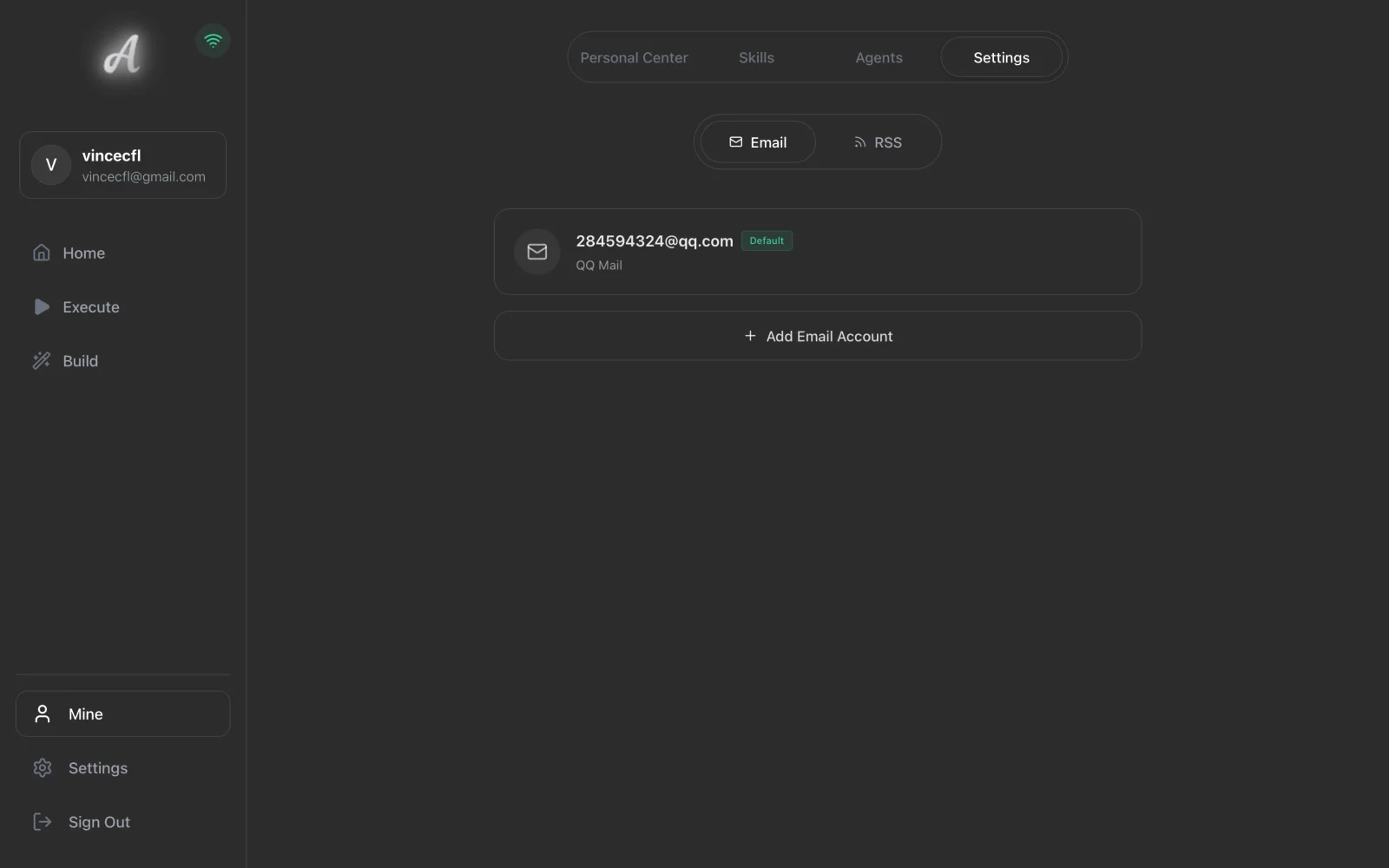
Use a recipient inbox you are comfortable testing with. Do not put passwords, keys, private files, local absolute paths, or customer data in prompts, forms, or screenshots.
1.3 Understand the Workflow
The Axon getting-started model has three practical layers:
| Concept | Role in this lesson |
|---|---|
| System Skills | Built-in capabilities. This lesson uses Research, PDF, and Email. |
| Agent | A repeatable workflow that chains multiple Skills. |
| Memory | Shown on the home overview; this lesson does not depend on it. |
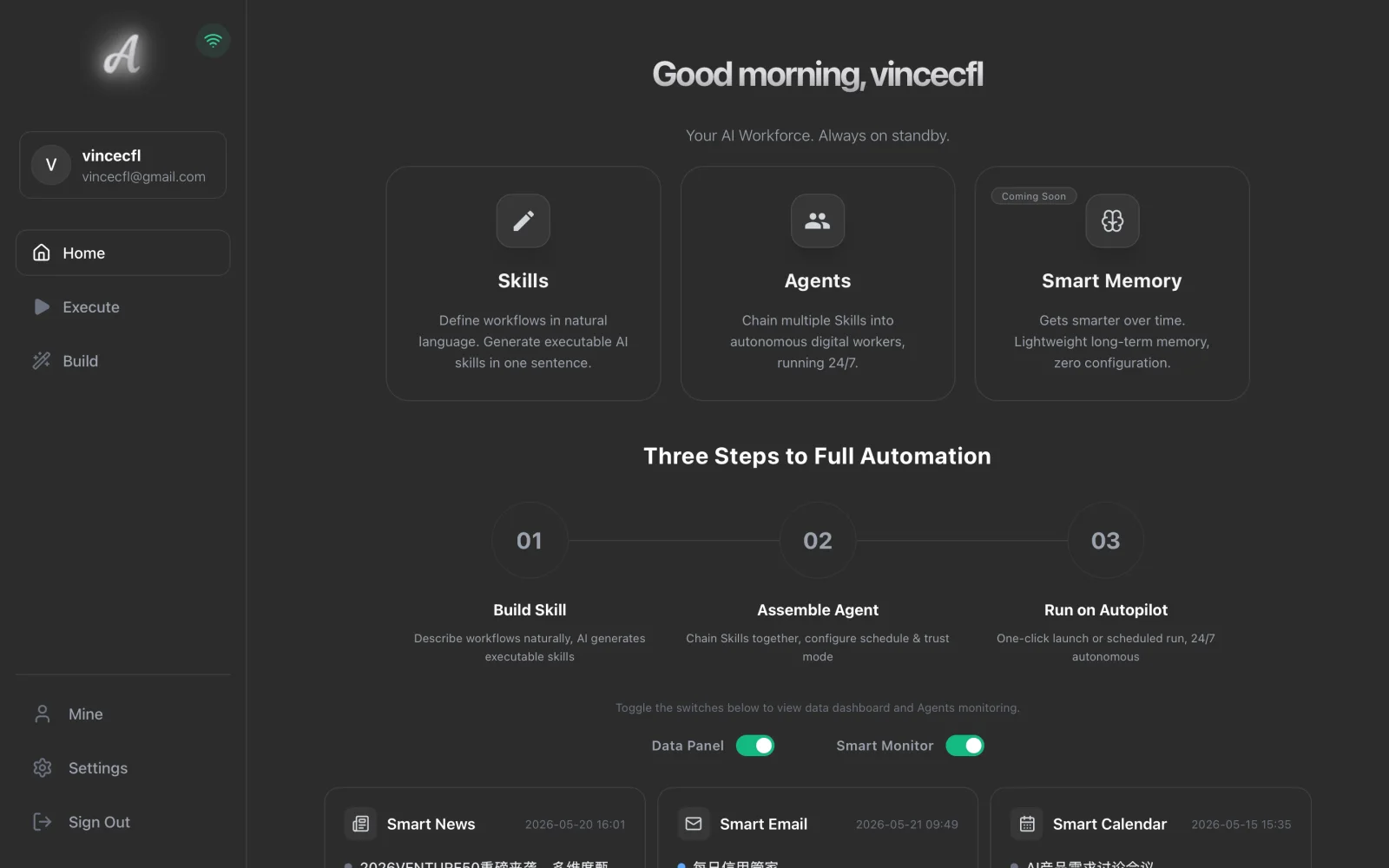
The Agent chain is short, but complete: Research creates Markdown, PDF exports the report, and Email sends the attachment.
Email sending is an external action. A manual run must show a confirmation card, and scheduled execution should be enabled only after you verify the recipient, subject, attachment, and body.
1.4 Open the Agent Builder
Open Build -> Agent. You will see an empty Agent form with role, summary, task, instruction, Skills, source data, Trust Mode, and schedule settings.
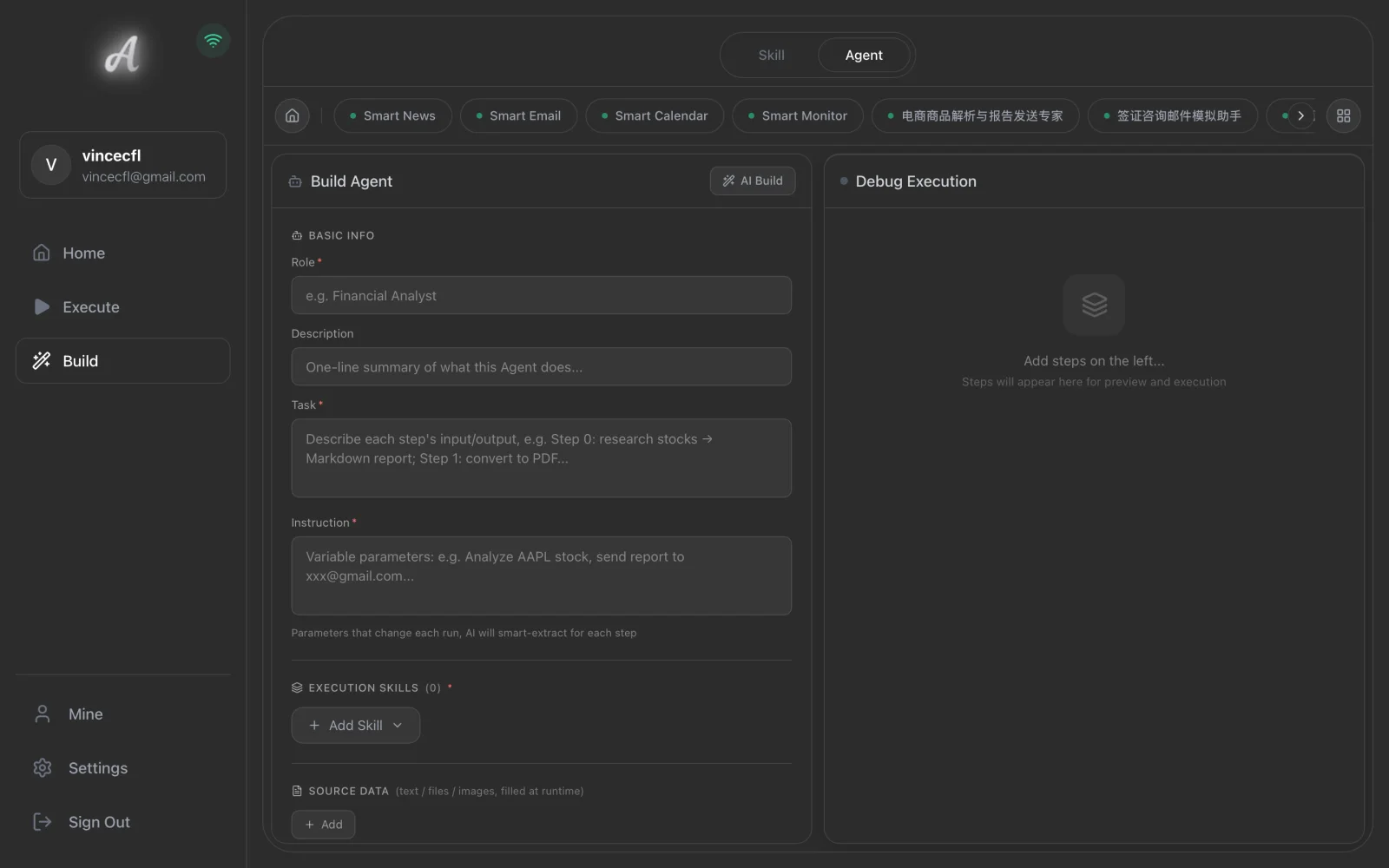
An Agent is not just a larger chat box. Think of it as a repeatable business workflow: every run reads inputs, calls Skills in order, and passes each result to the following step.
1.5 Confirm the Build Goal
Click Smart Build and start in the AI Assistant tab. Enter a concrete business goal:
I want to automatically generate a public research report, export it as a PDF, and send it to a specific email address. How should I build the Agent?
The AI Assistant tab first shows the supported capability modules. After you submit the business goal, it helps turn the goal into a build instruction that can be passed to AI Build. You are not expected to memorize a complex prompt. The purpose is to confirm what the Agent should do, which capabilities it should use, and where the risk boundary is.
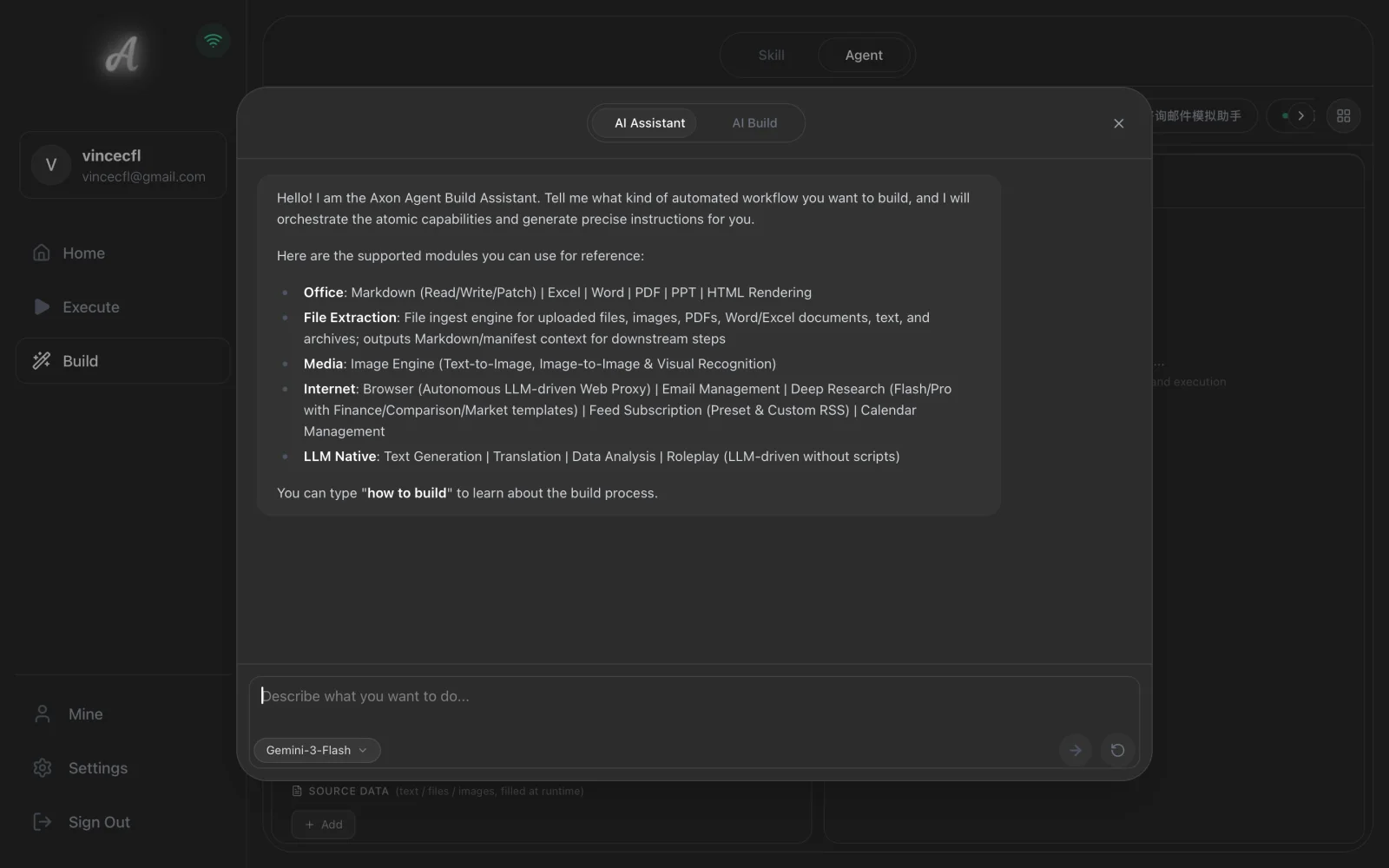
For this lesson, confirm this chain:
| Step | Skill | Action | Output |
|---|---|---|---|
| 1 | std-internet-research | deep-research-flash | Markdown research report |
| 2 | std-office-pdf | generate | PDF file card |
| 3 | std-internet-email | send_email | Email confirmation and sent result |
1.6 Fill the Form with AI Build
Switch to the AI Build tab and paste the build instruction prepared from the previous step. For the English version, use the role name Public Research Report Delivery.
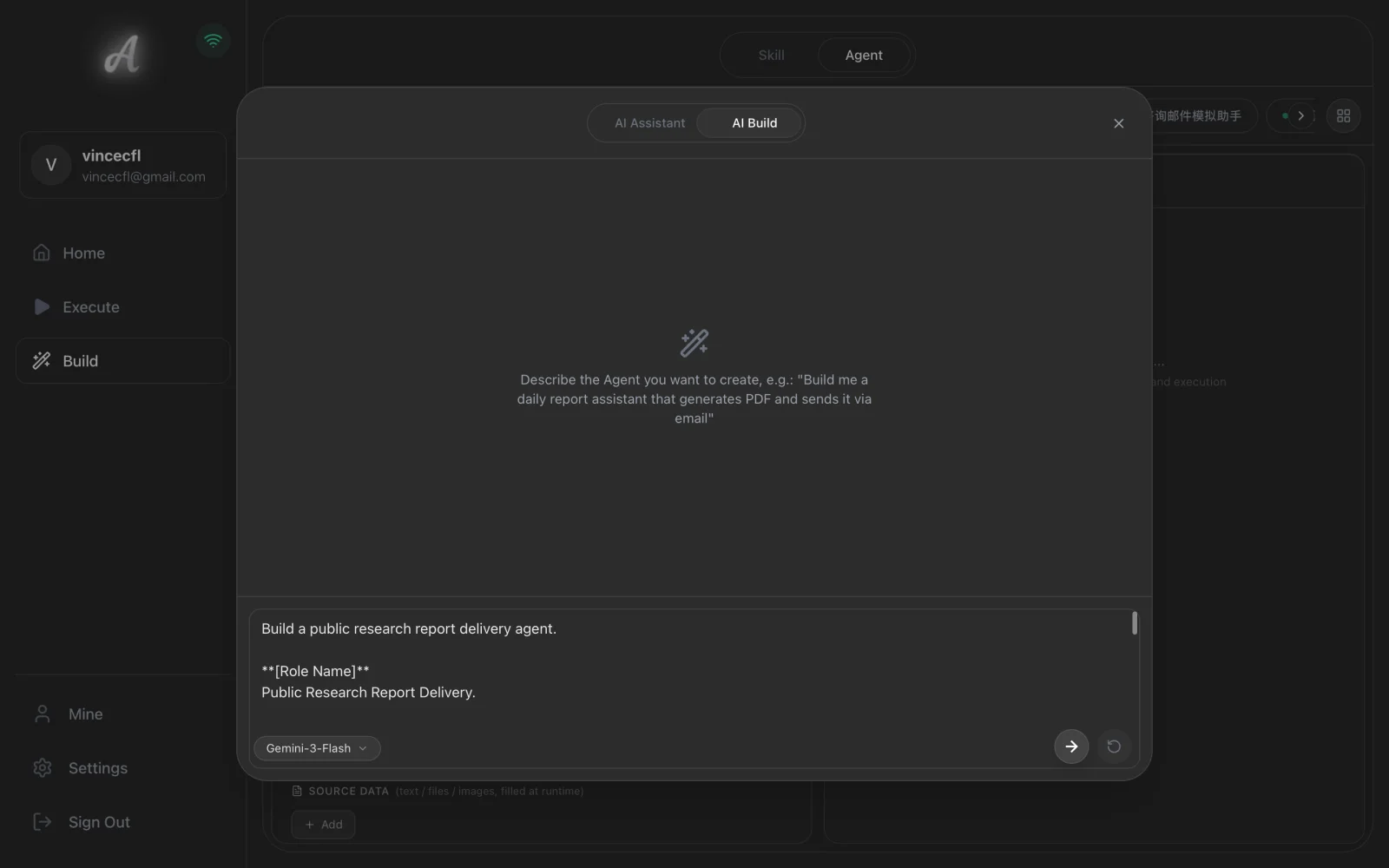
Wait for AI Build to generate the structured configuration. When the result is ready, you will see Fill Form.
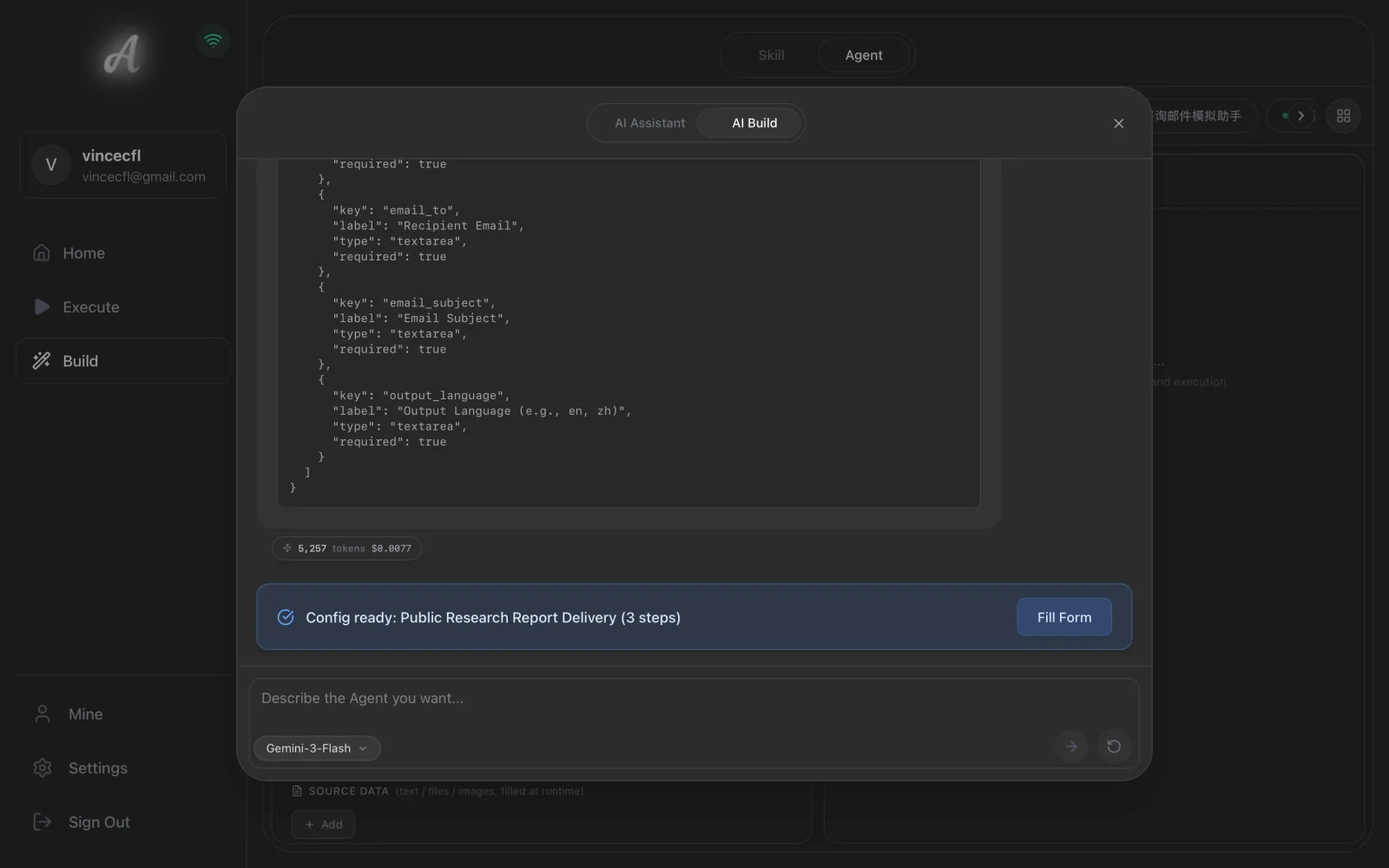
Click Fill Form. Axon fills the role, task, instruction, Skills, and source data into the Agent form. When the save prompt appears, review the form before running anything.
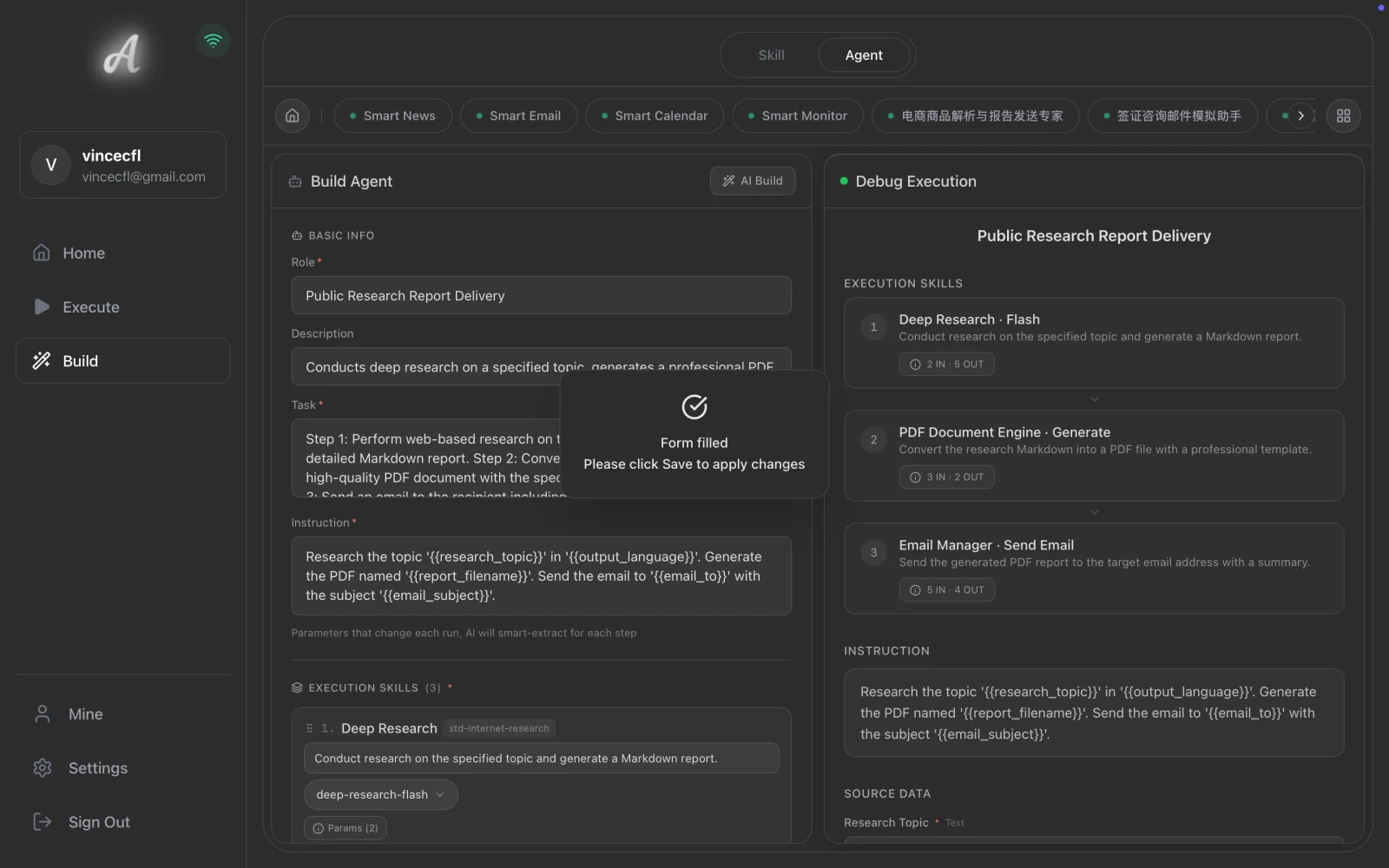
1.7 Review the Agent Basics
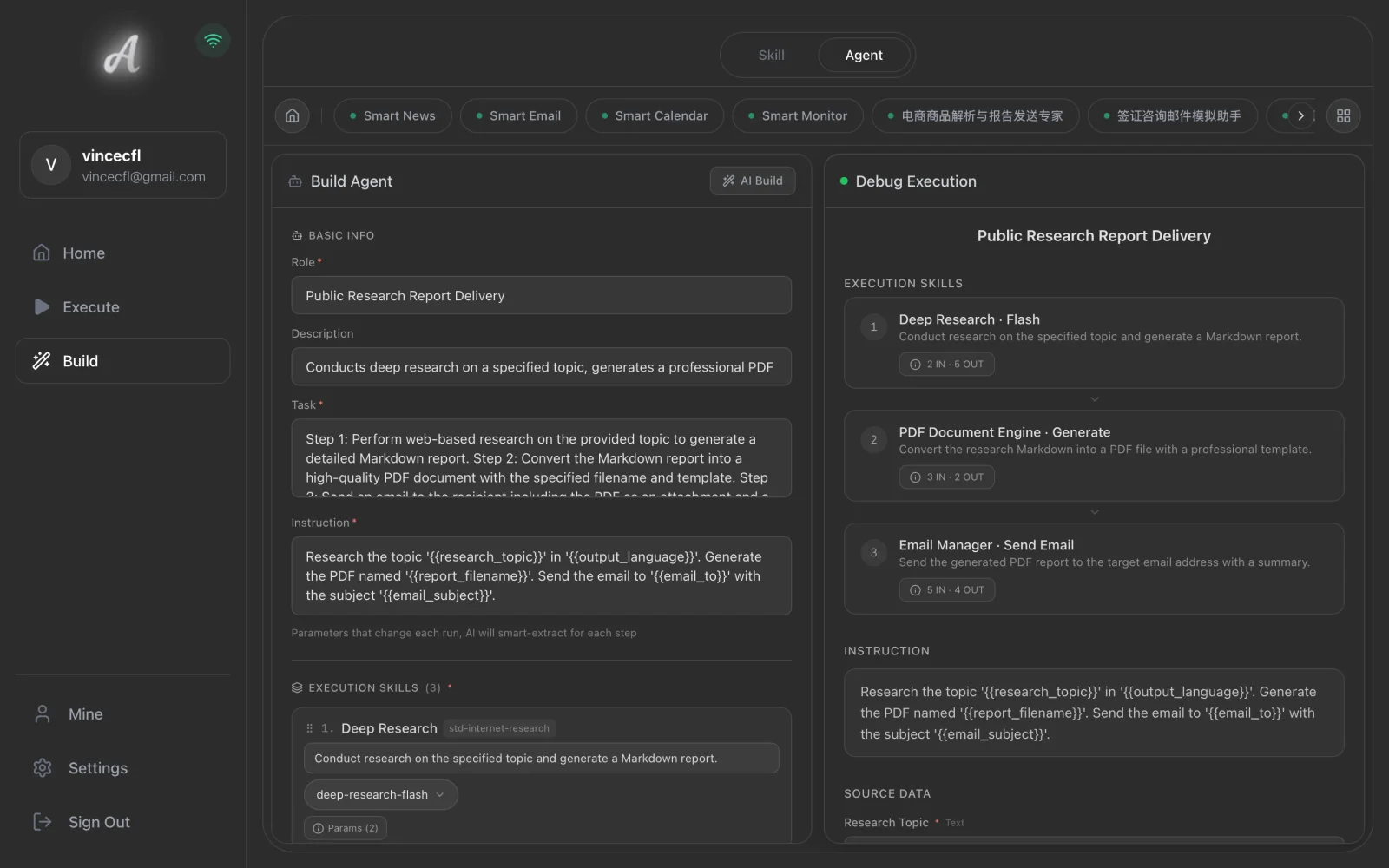
The top part of the form should answer four questions:
| Field | What to check |
|---|---|
| Role | Use Public Research Report Delivery. |
| Summary | It should mention Markdown research, PDF export, and email delivery. |
| Task | It should describe how each run completes research, report creation, and delivery. |
| Instruction | It should avoid fabricated sources, avoid deleting or moving data, and treat email sending as a confirmation action. |
A good Agent name should describe a business capability. It should not feel like a generic product label.
1.8 Review the Skills Chain
Next, review the execution Skills. You should see these three steps in order:
std-internet-research/deep-research-flashstd-office-pdf/generatestd-internet-email/send_email
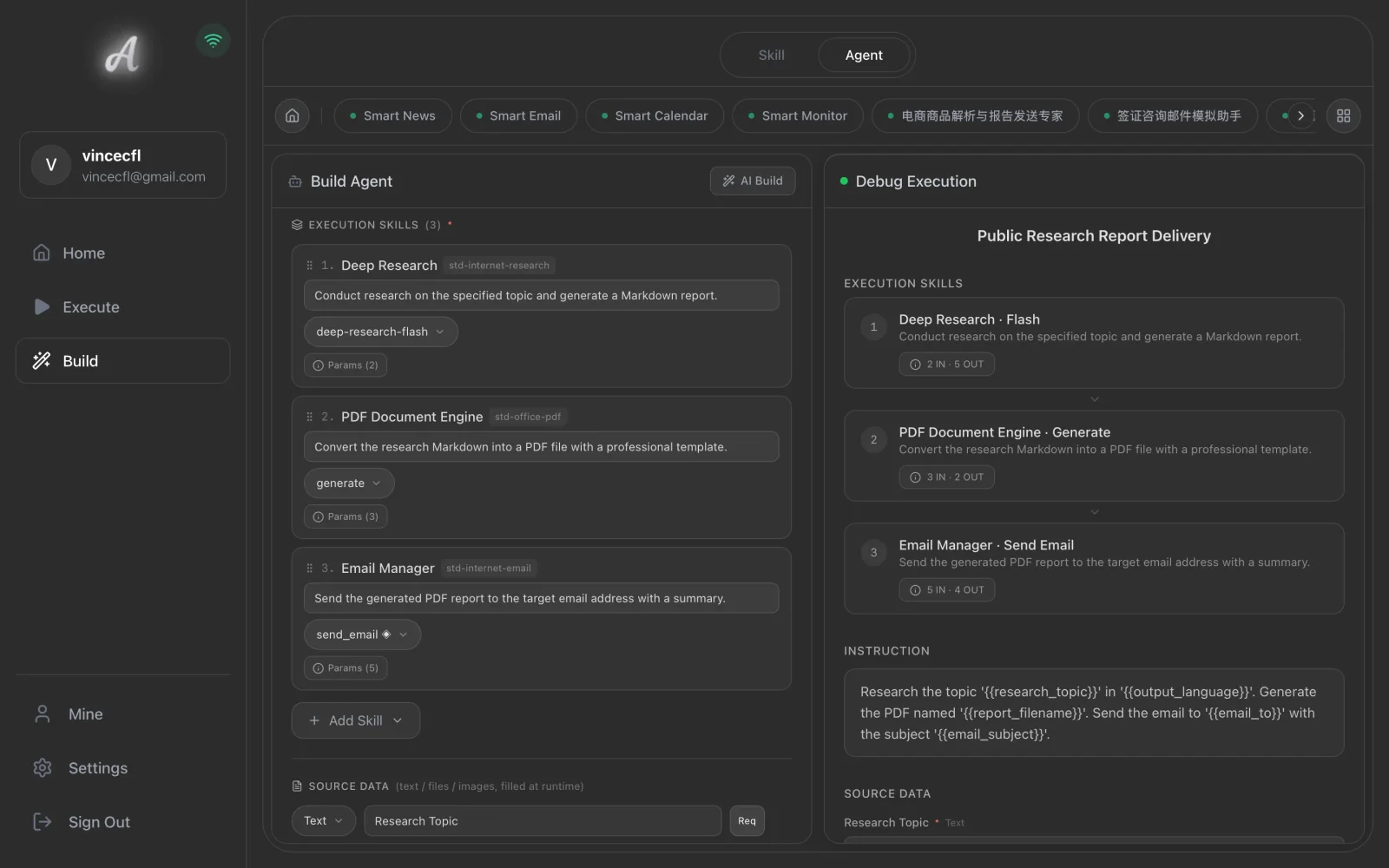
Keep the first version stable around these three steps. Do not add private-file-reading or higher-risk actions.
1.9 Configure Source Data
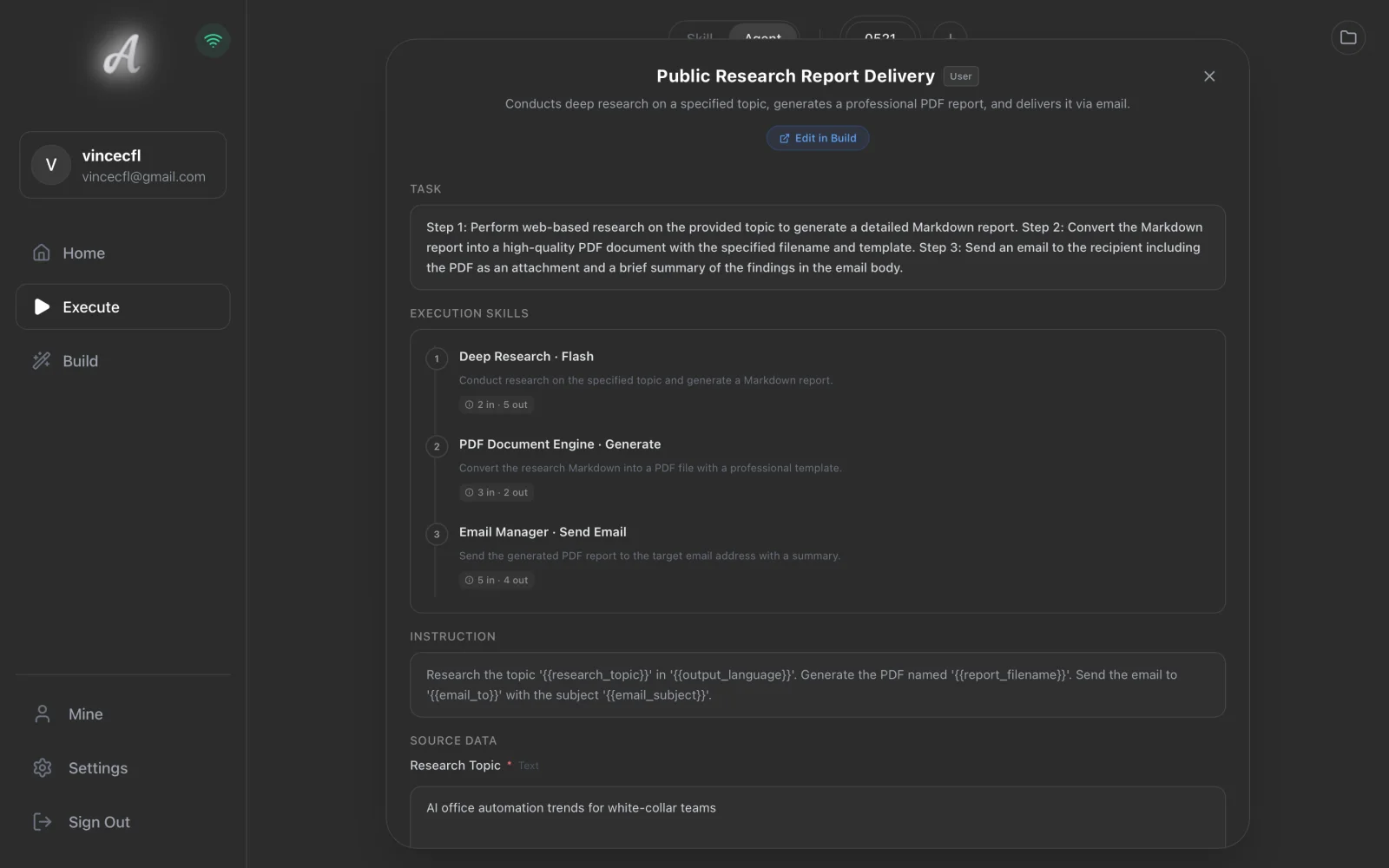
Source data defines what the user fills in each time the Agent runs. Keep the first version to five fields:
| Key | Example |
|---|---|
| research_topic | AI office automation trends for white-collar teams |
| report_filename | ai-office-automation-report-en |
| email_to | Enter the inbox you will use for review. |
| email_subject | Axon generated research report |
| output_language | en |
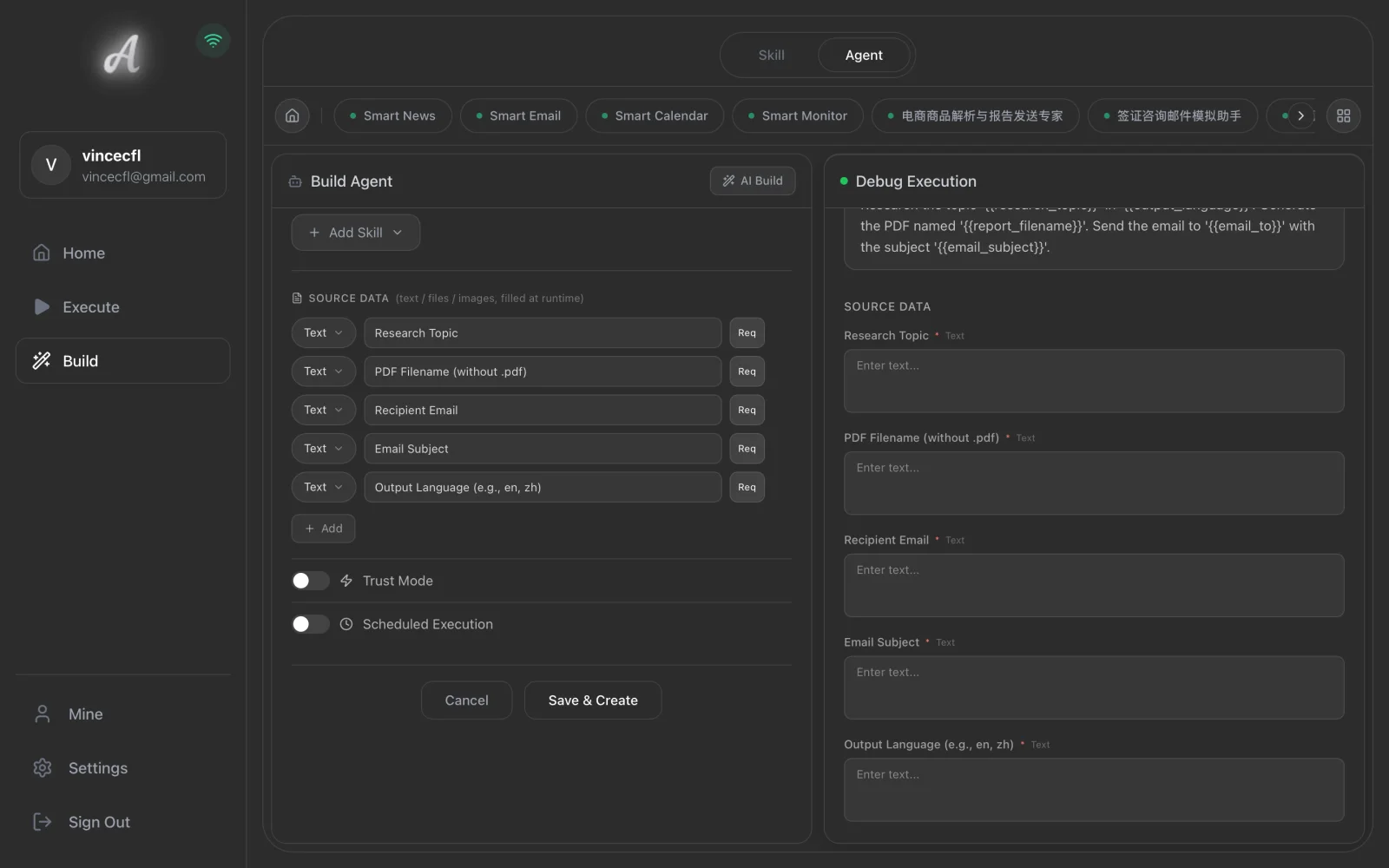
Stable inputs make scheduled execution easier to review. Keep the first tutorial focused.
1.10 Review Trust Mode and Schedule Settings
Keep Trust Mode off before the first manual run. When the workflow reaches the email step, Axon should show a confirmation card so the user can review the external send action.
The screenshot below shows the scheduled execution area after it has been turned on, so you can recognize the controls and warning message. If you are following the lesson for the first time, do not save an automatically triggered schedule before the manual test run passes.
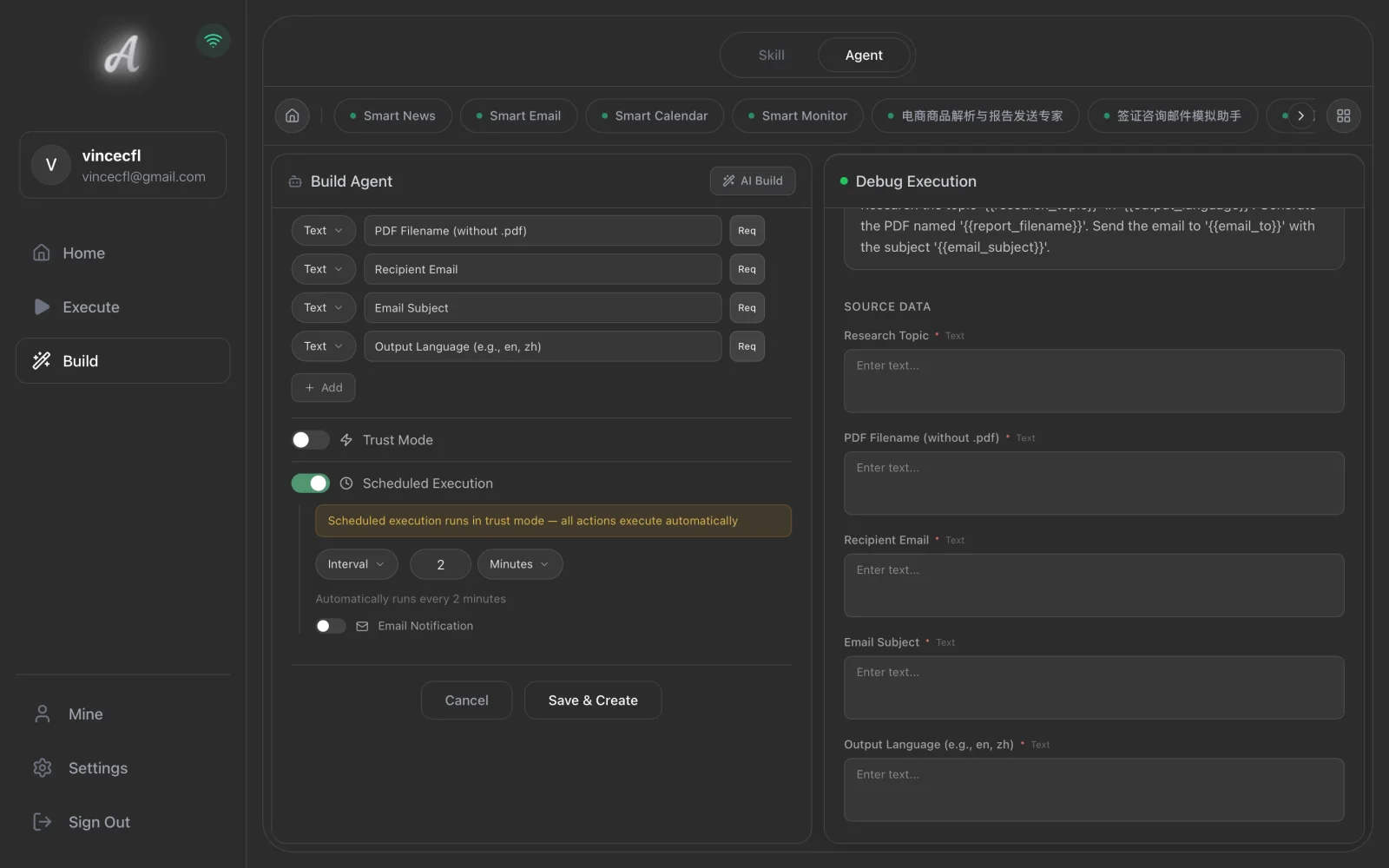
Scheduled execution is for workflows that have already been verified. Because this Agent sends email, complete at least one manual run before turning scheduling on:
| Mode | Best use |
|---|---|
| Interval | Test whether automation is working, for example every 10 minutes. |
| Daily | Use a stable workflow, for example every day at 09:00. |
Scheduled runs execute in trust mode, so use them only when the recipient, topic, attachment, and body format are stable and reviewed.
1.11 Save the Agent
After review, save the Agent. For the first walkthrough, confirm again that Trust Mode is off and that no schedule will trigger before manual verification. Once saved, the Agent is ready for a manual test run.
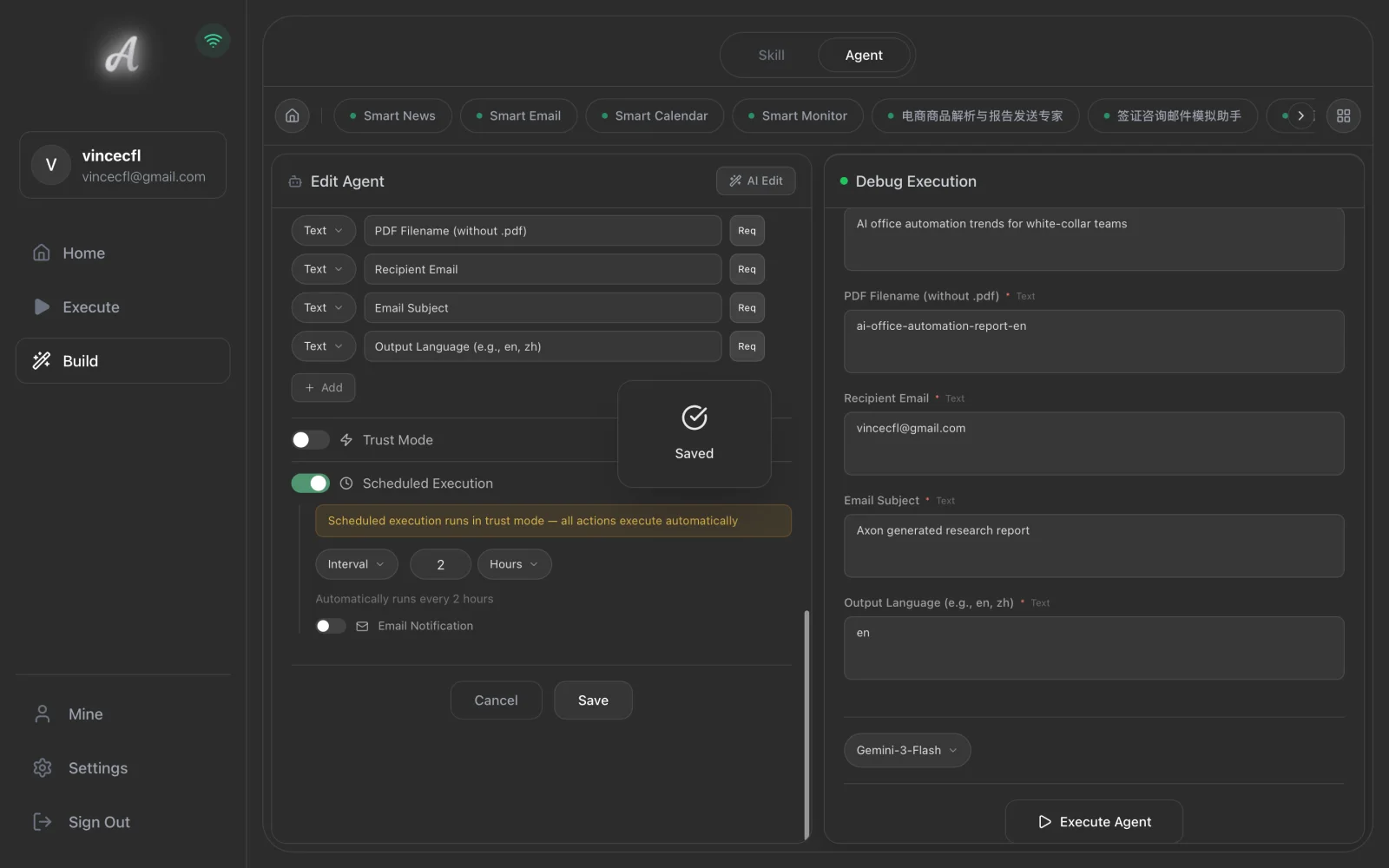
Saving is not the finish line. The real acceptance check starts with the first manual run.
2 Run and Automate
2.1 Run the Agent Manually
Go to Execute -> Agent, open the Public Research Report Delivery form, and fill in the research topic, PDF filename, recipient, email subject, and output language.
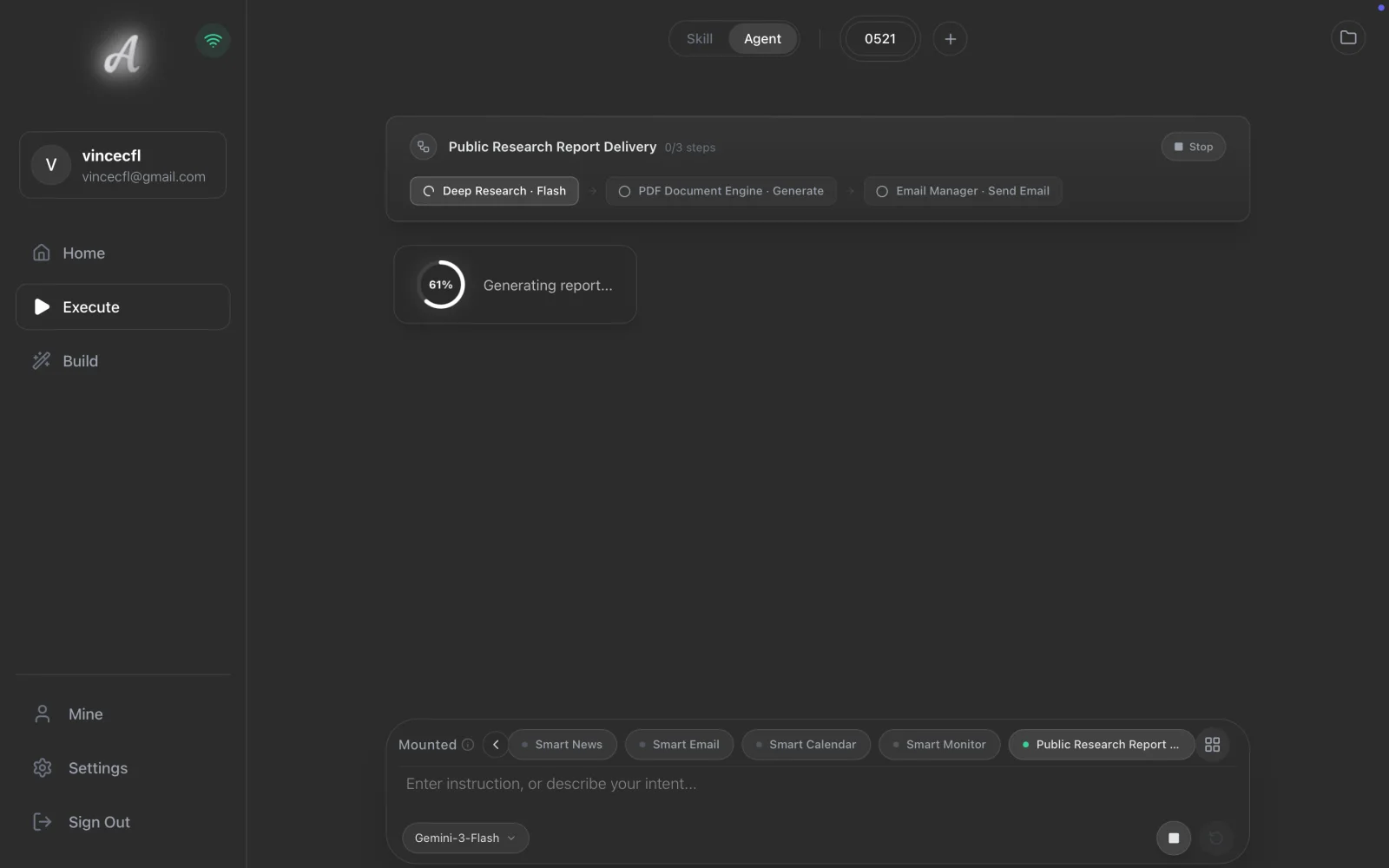
After you start the run, watch the progress card. The first Research step should begin.
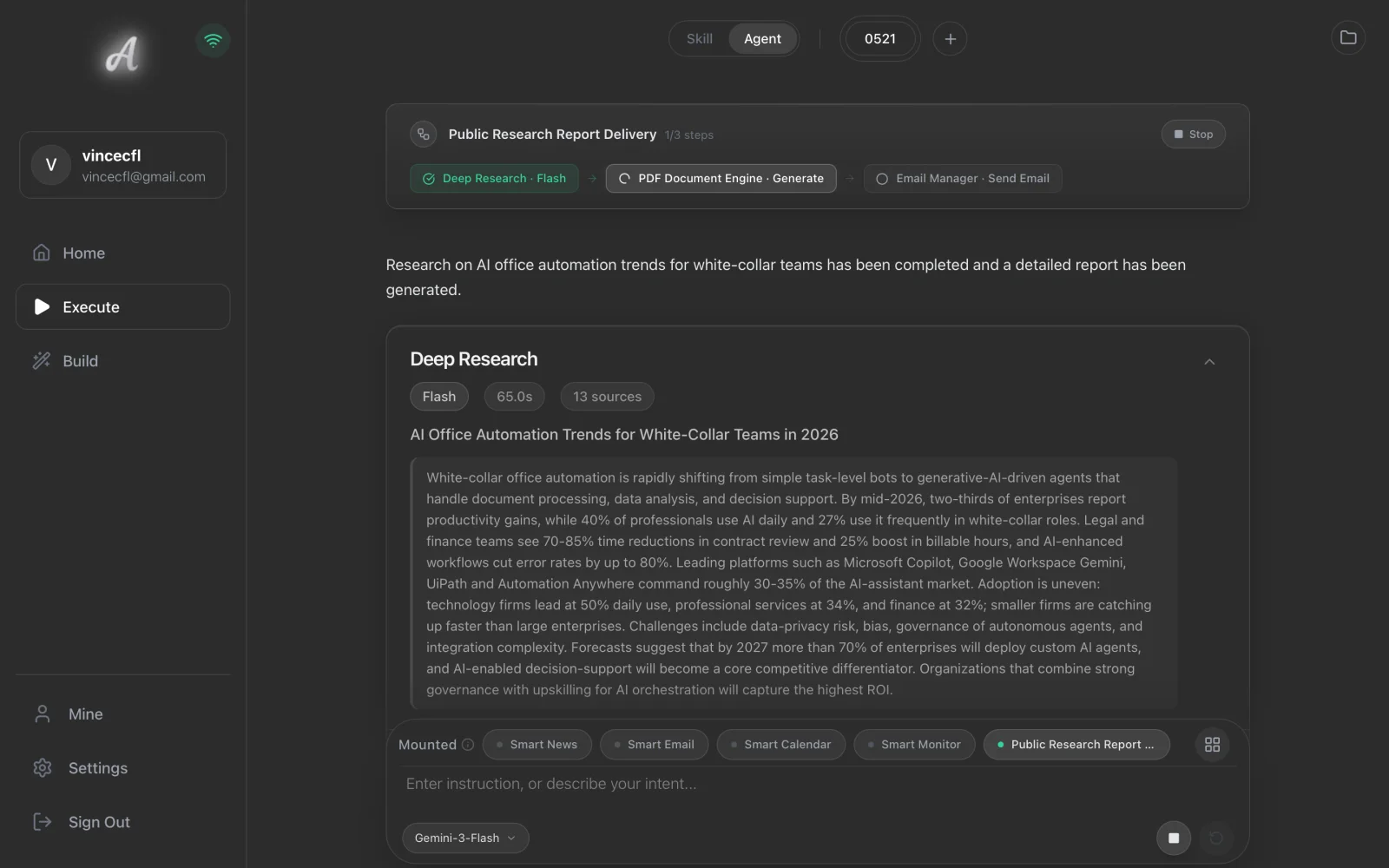
When the Research step completes, check whether the Markdown content stays on topic. If evidence is limited, the report should state the limitation instead of inventing sources.
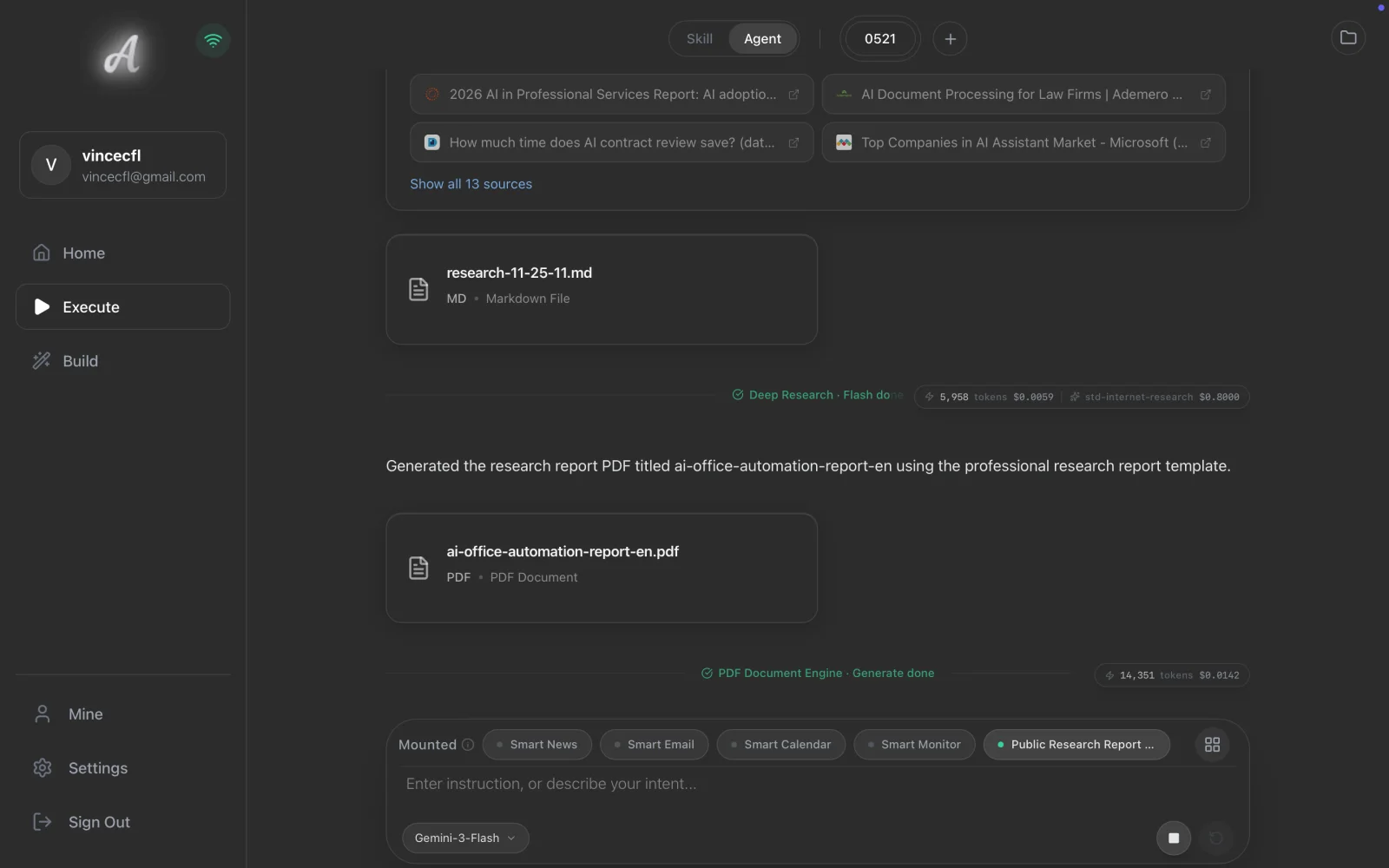
Next, check the PDF file card. The card means the Markdown output has been passed to the PDF engine and exported as a report file.
2.2 Confirm Email Sending
When the workflow reaches send_email, you should see an email confirmation card. Review the recipient, subject, body summary, and attachment before confirming.
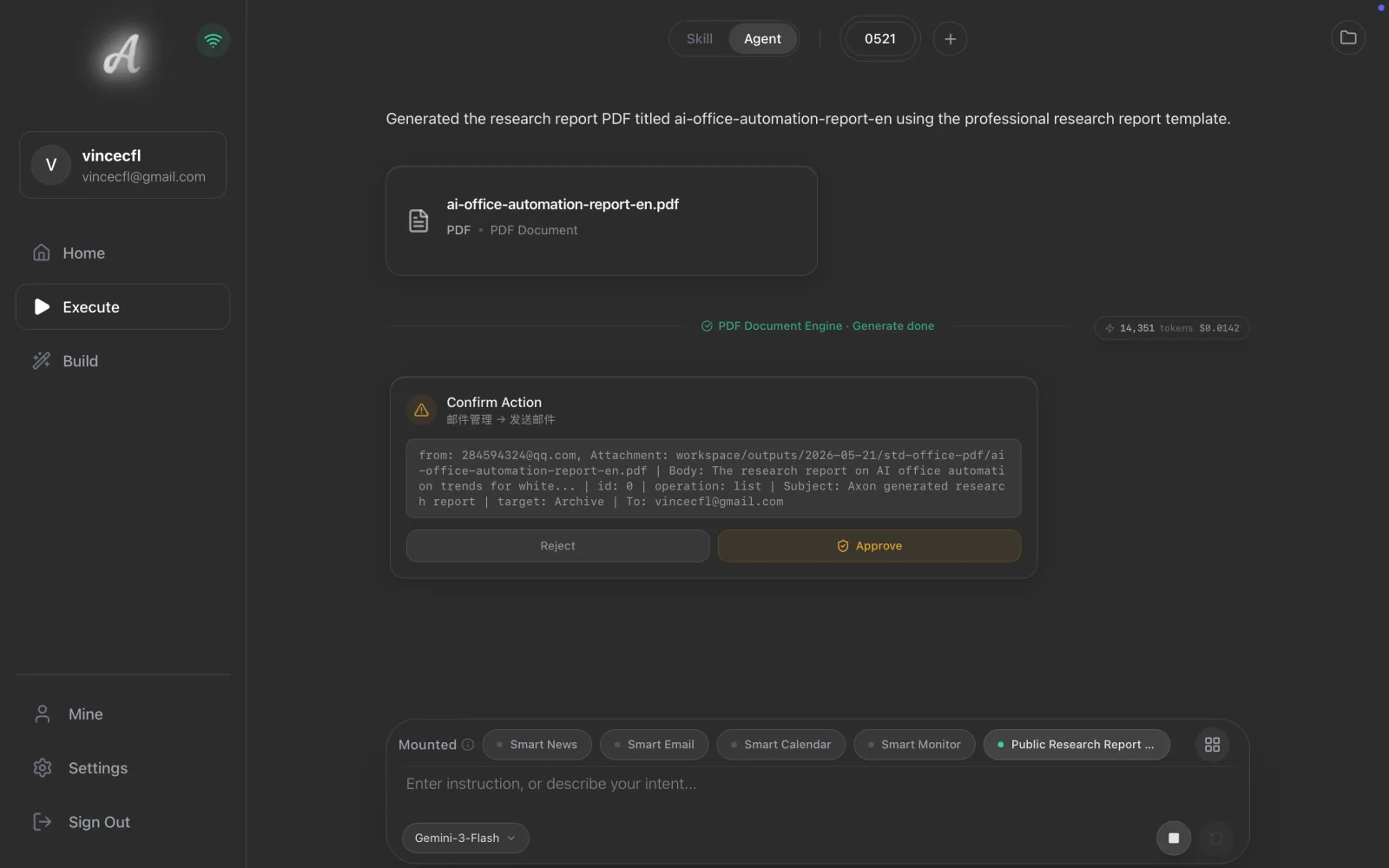
After confirmation, Axon continues the send action and shows the result.
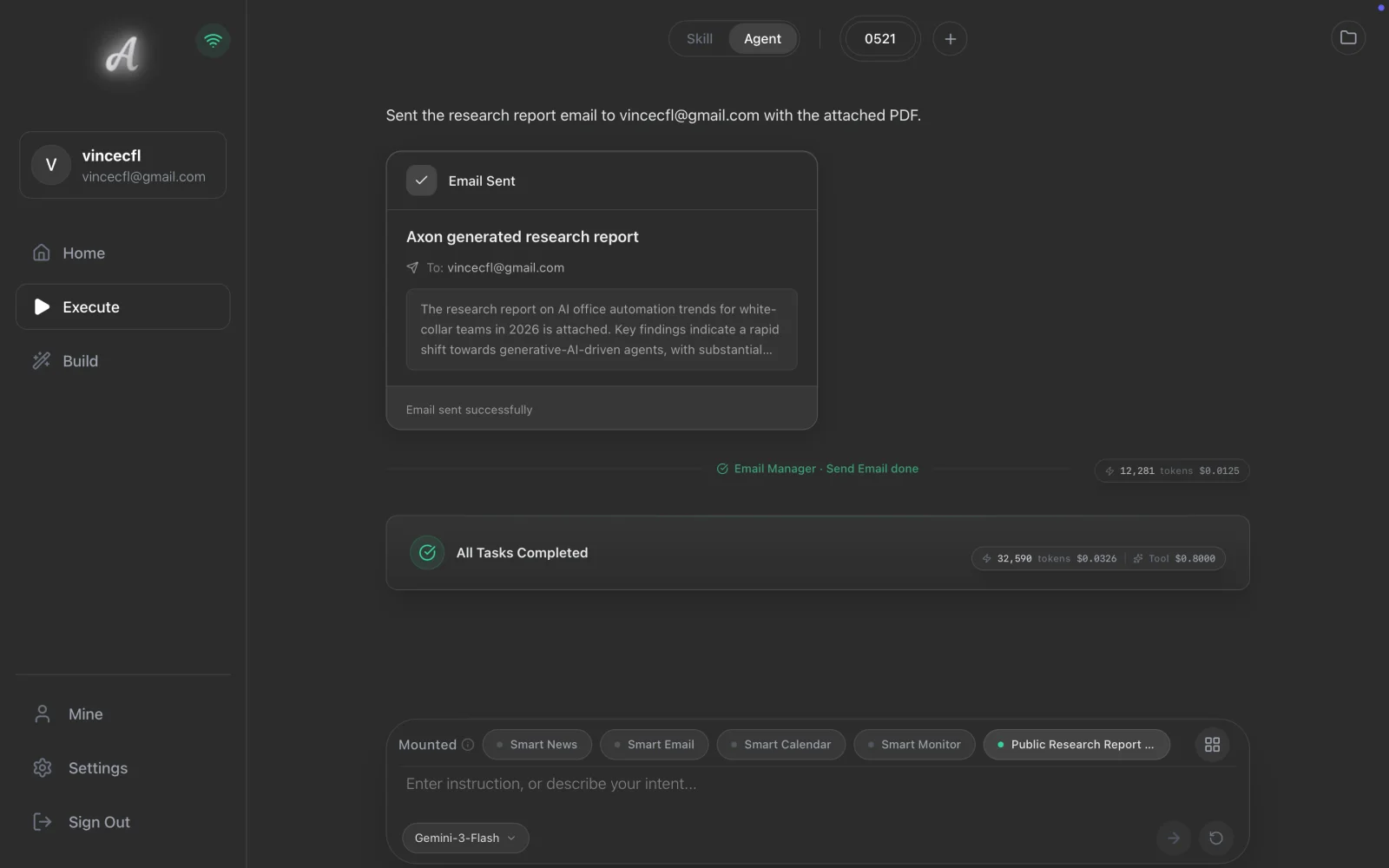
This confirmation card is an important boundary in the tutorial. External send actions are not the same as text generation. Scheduled execution should not be enabled until this step has been verified.
2.3 Check the Outputs
Open the PDF file card in the built-in preview. Check the title, outline, and body.
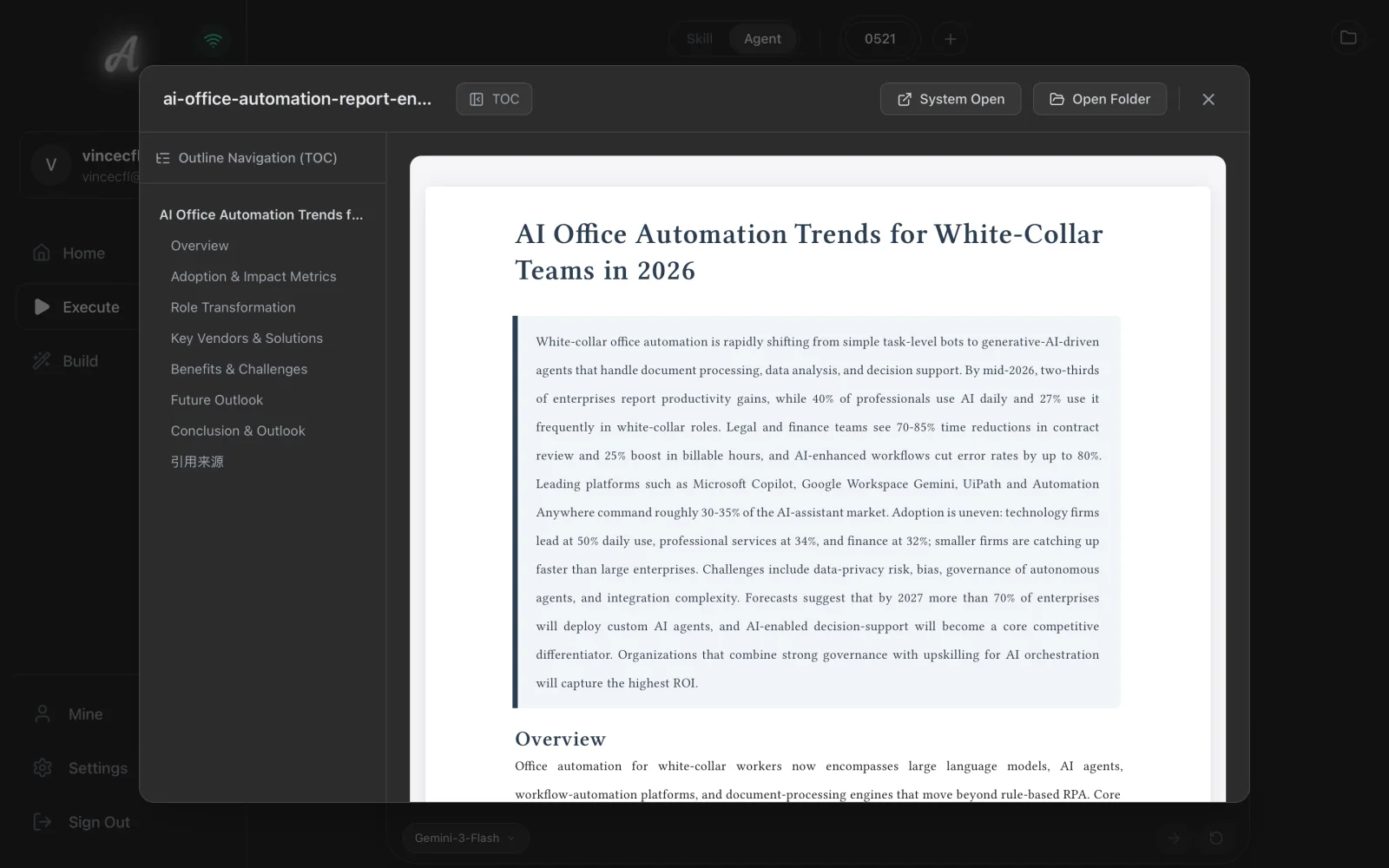
Then check the recipient mailbox. The email should include a short body summary and the PDF attachment.
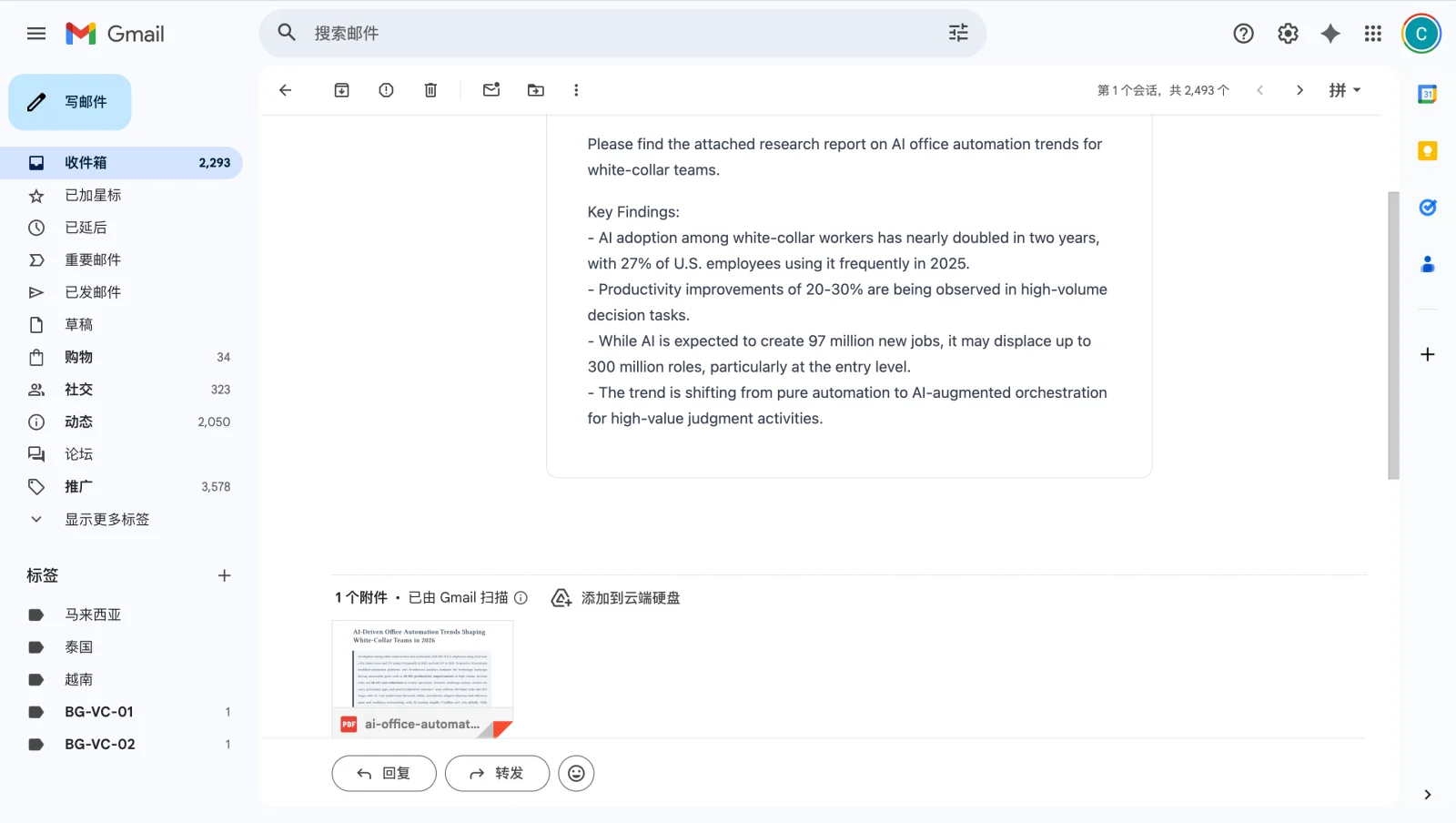
The manual run passes only when the PDF opens, the email arrives, and the attachment is correct.
2.4 Checklist Before Scheduling
Before enabling scheduled execution, verify each item:
| Check | Pass standard |
|---|---|
| Agent configuration | The chain is Research, PDF, Email. |
| Inputs | Topic, filename, recipient, subject, and output language are clear. |
| PDF output | The file card opens and the report is readable. |
| Email confirmation | Manual run shows the confirmation card and the details are correct. |
| Inbox proof | The mailbox shows the email and PDF attachment. |
| Risk boundary | The Agent does not read private files, delete data, or move data. |
After these checks pass, scheduled execution is appropriate for stable, low-risk, repeatable workflows.
2.5 Enable Scheduled Execution
After every checklist item passes, return to the Trust Mode and schedule area in the Agent configuration. For the first automatic validation, use a short interval schedule; after the workflow is stable, switch to a daily fixed time.
| Scenario | Suggested setting |
|---|---|
| First automatic validation | Use an interval schedule with a controlled test window, keep the recipient fixed, and inspect one complete result. |
| Stable daily workflow | Use a daily schedule, for example every day at 09:00. |
Save the Agent. The next run will be triggered by the schedule. If this is only a test, turn scheduling off or switch to the intended daily cadence after one verified run. Because this Agent sends email, do not schedule it for recipients, topics, or attachment formats that have not been reviewed.
2.6 Optional: Run from Agent Chat
Outside scheduled execution, you can also trigger the same Agent from the Agent chat entry. It still uses the same Skills chain and source data.
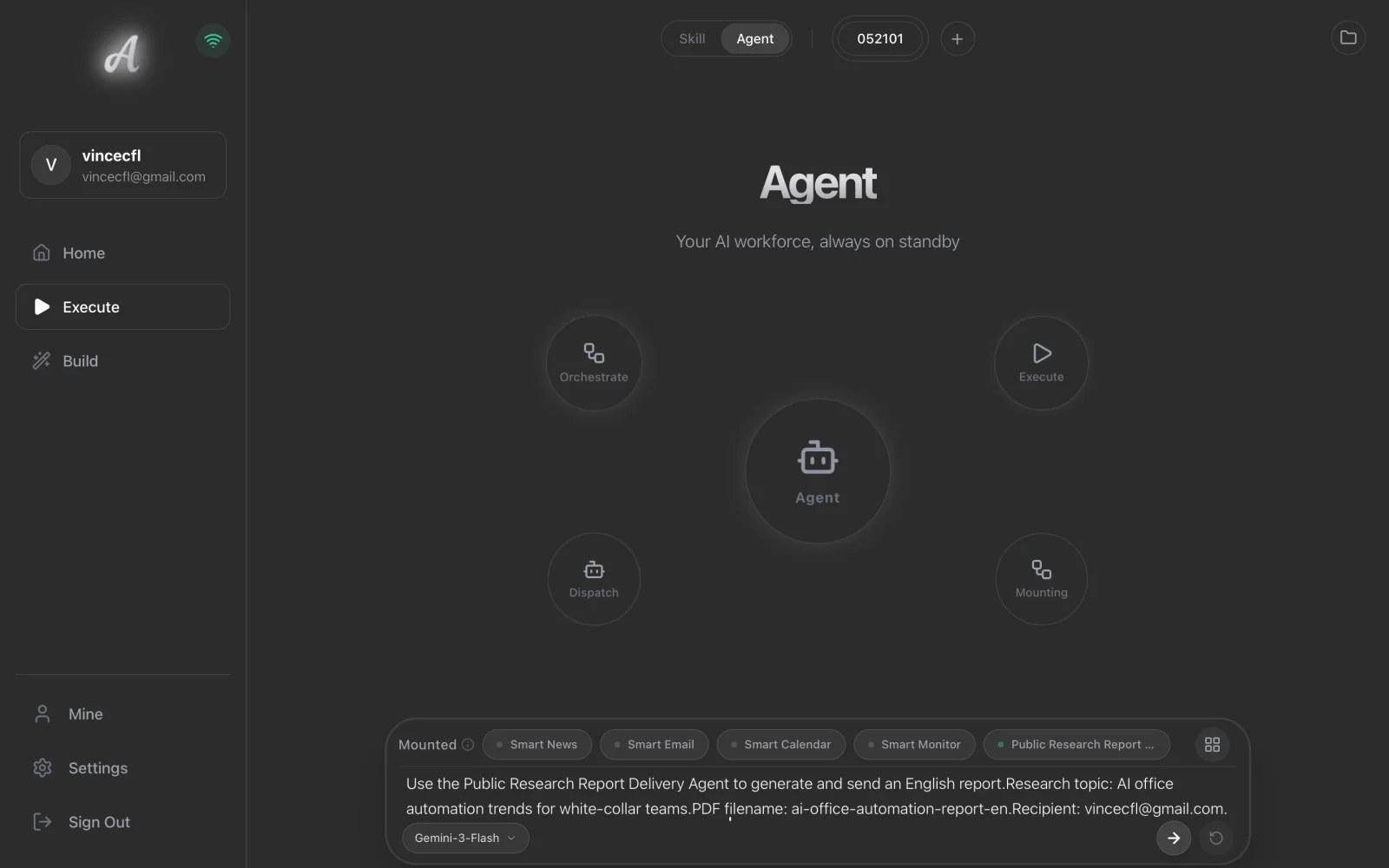
Example prompt:
Use the Public Research Report Delivery Agent to generate and send an English research report.
Research topic: AI office automation trends for white-collar teams.
PDF filename: ai-office-automation-report-en.
Recipient: enter the inbox you will use for review.
Email subject: Axon generated research report.
Output language: en.
If Axon asks for missing parameters, provide only the missing fields and keep the same scenario.
2.7 Common Issues
| Issue | What to do |
|---|---|
| AI Build did not generate the three-step chain | Return to the AI Assistant tab and restate the goal as Research -> PDF -> Email. |
| The email step did not show a confirmation card | Check that the Agent uses std-internet-email.send_email, and keep Trust Mode off before the first manual run. |
| No PDF was generated | Check whether the Research step produced Markdown and whether the PDF step uses generate. |
| You are not sure whether to schedule it | Do not schedule yet. Complete at least one manual run and verify the recipient and attachment. |